guide
About BookThoughts
BookThoughts is a reading app designed for reading, marking, and taking notes on books. The core idea is to provide a pleasant reading experience and facilitate the recording of user thoughts while reading.
Book
We do not provide direct ebook downloads, so you’ll need to have legally obtained and downloaded ebooks or obtain them through sharing from others.
We support reading ebooks in epub, txt, mobi, and azw3 formats, while other formats are not currently supported.
Opening Downloaded Book
If you’ve downloaded an ebook through a browser, you can open it using the following steps:
- Click the “+” button in the top right corner.
- Enter the filename of the ebook you just downloaded in the search input box.
- In the search results, click on the ebook file.
- After successfully adding the book, click anywhere outside the book’s title or cover image to open the book.
For example, if I’ve just downloaded an ebook titled “Pride_and_Prejudice_by_Jane_Austen.epub” , I would open the book following the steps illustrated below: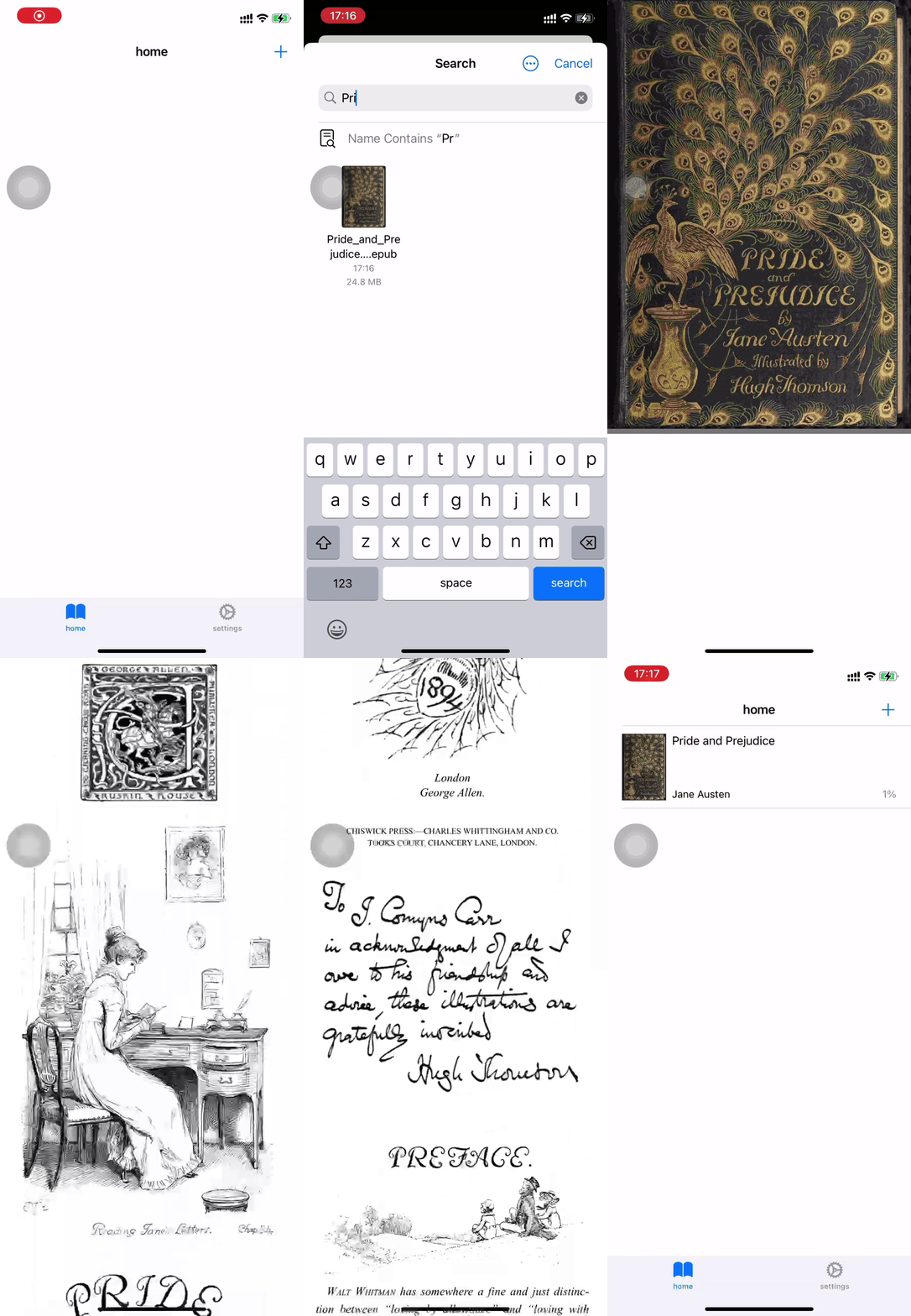
Opening Shared Book
You can directly share books from other apps to the BookThoughts app as demonstrated below:
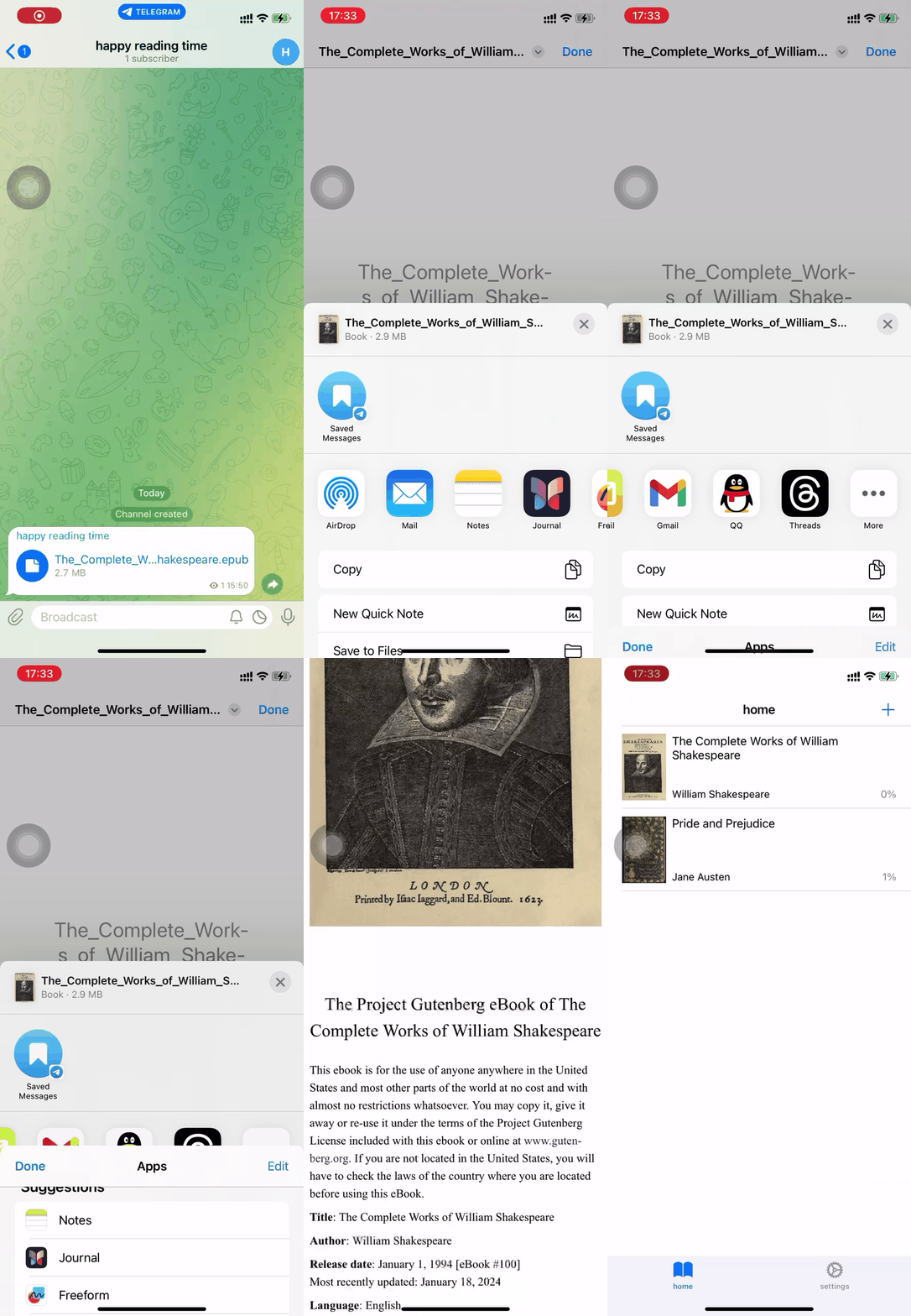
Conveniently Importing Book
To facilitate future use, you can add BookThoughts app to the Favorites list . Here’s how: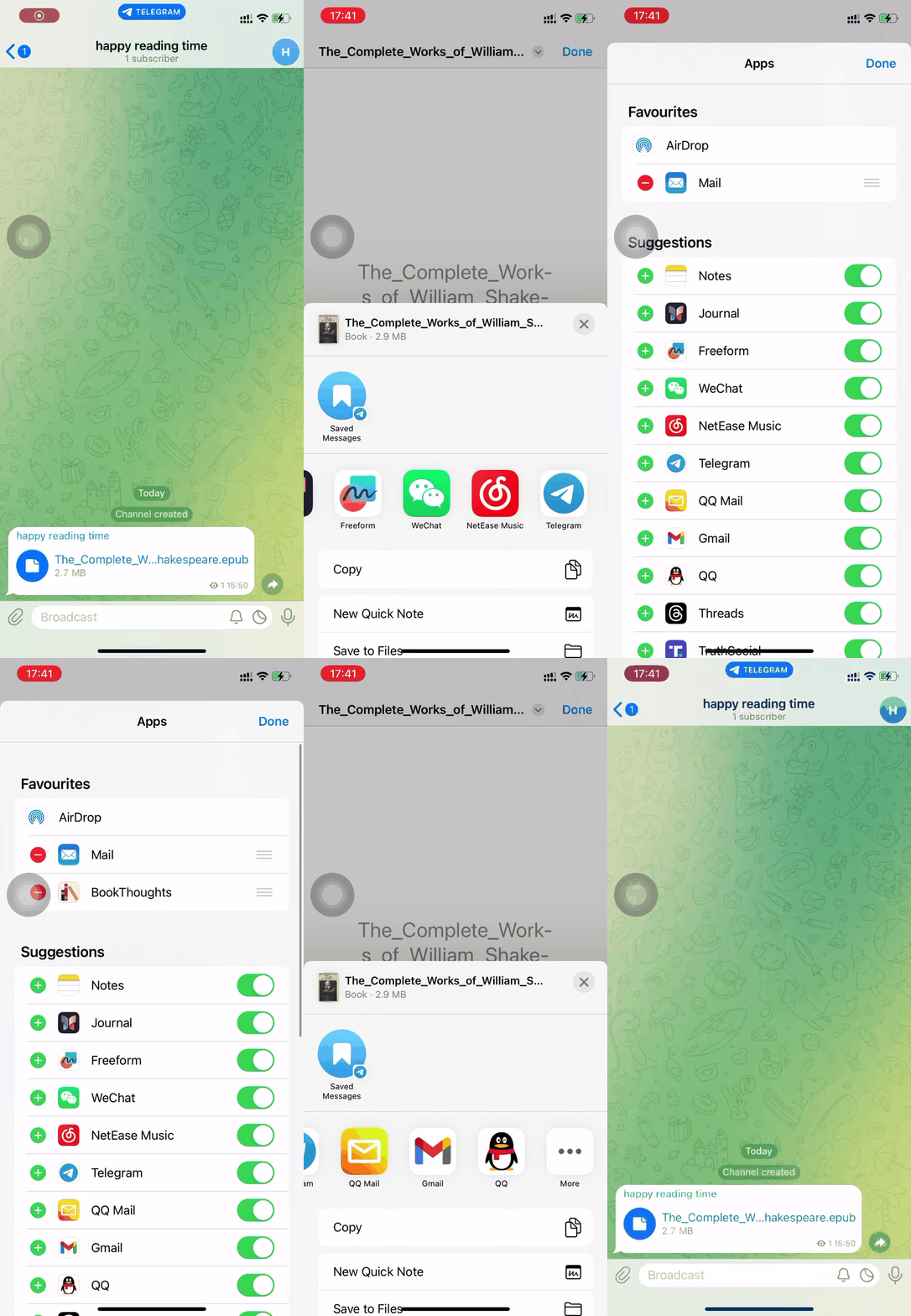
Deleting Book
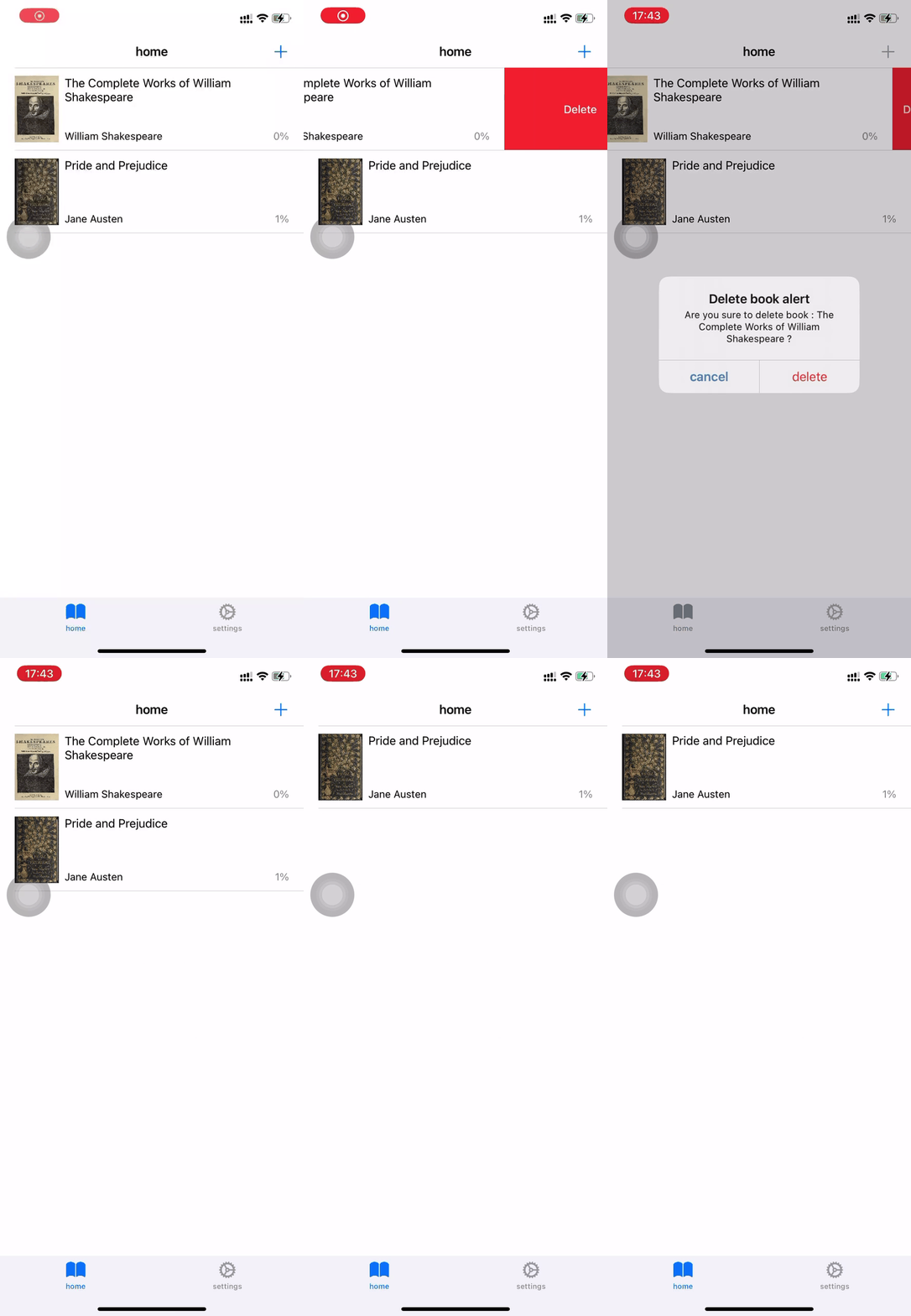
Similar to most apps, you can delete content by swiping a row in the list. See the example below:
Mark
Marking Text
We provide a feature to mark text in books to help users remember key points. Here’s how:
- Select a portion of text and choose “mark” from the menu.
- Choose a color from the secondary menu.

Viewing Your Marks
To view your marks while reading a book, tap on “marks” in the bottom tab bar.

Note
Adding Notes
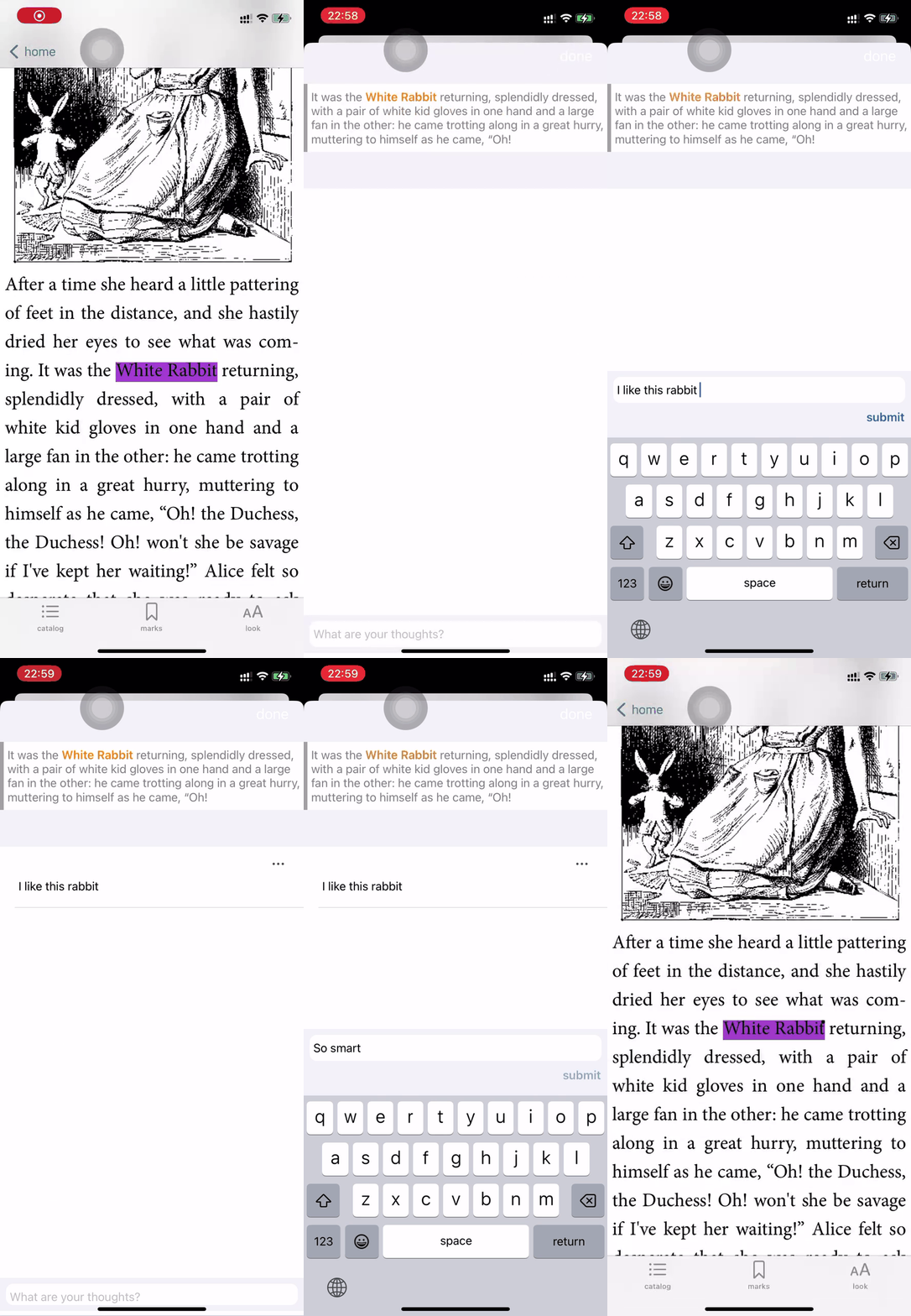
Select a portion of text or click on the mark(highlight) , then click the “note” menu to add a note. Here’s how:
Editing or Deleting Notes
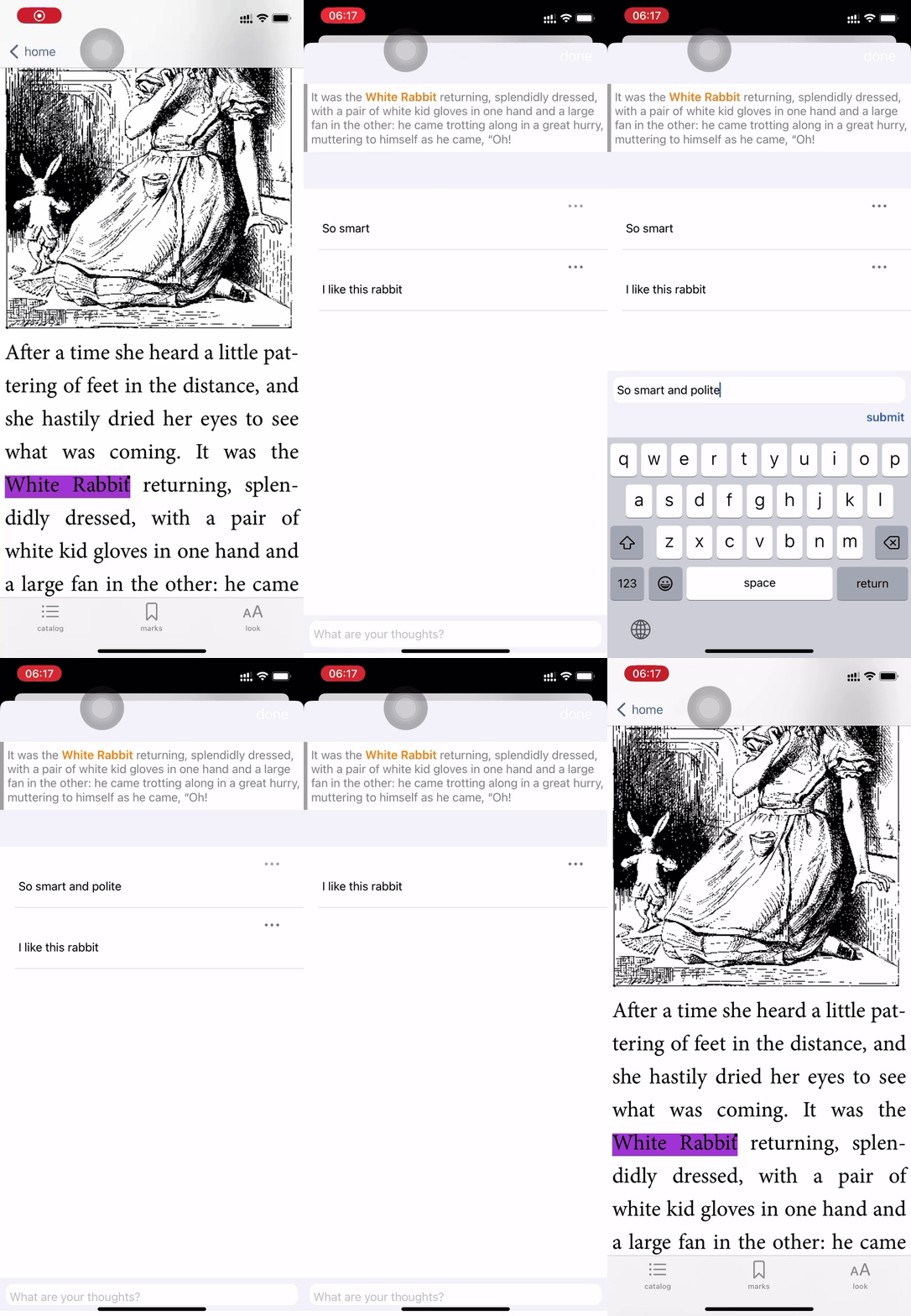
After adding a note, you can edit or delete it as shown below:
Viewing Your Notes
After adding notes, you can view the notes you’ve written (currently, only the latest note for each mark is displayed). Here’s how:
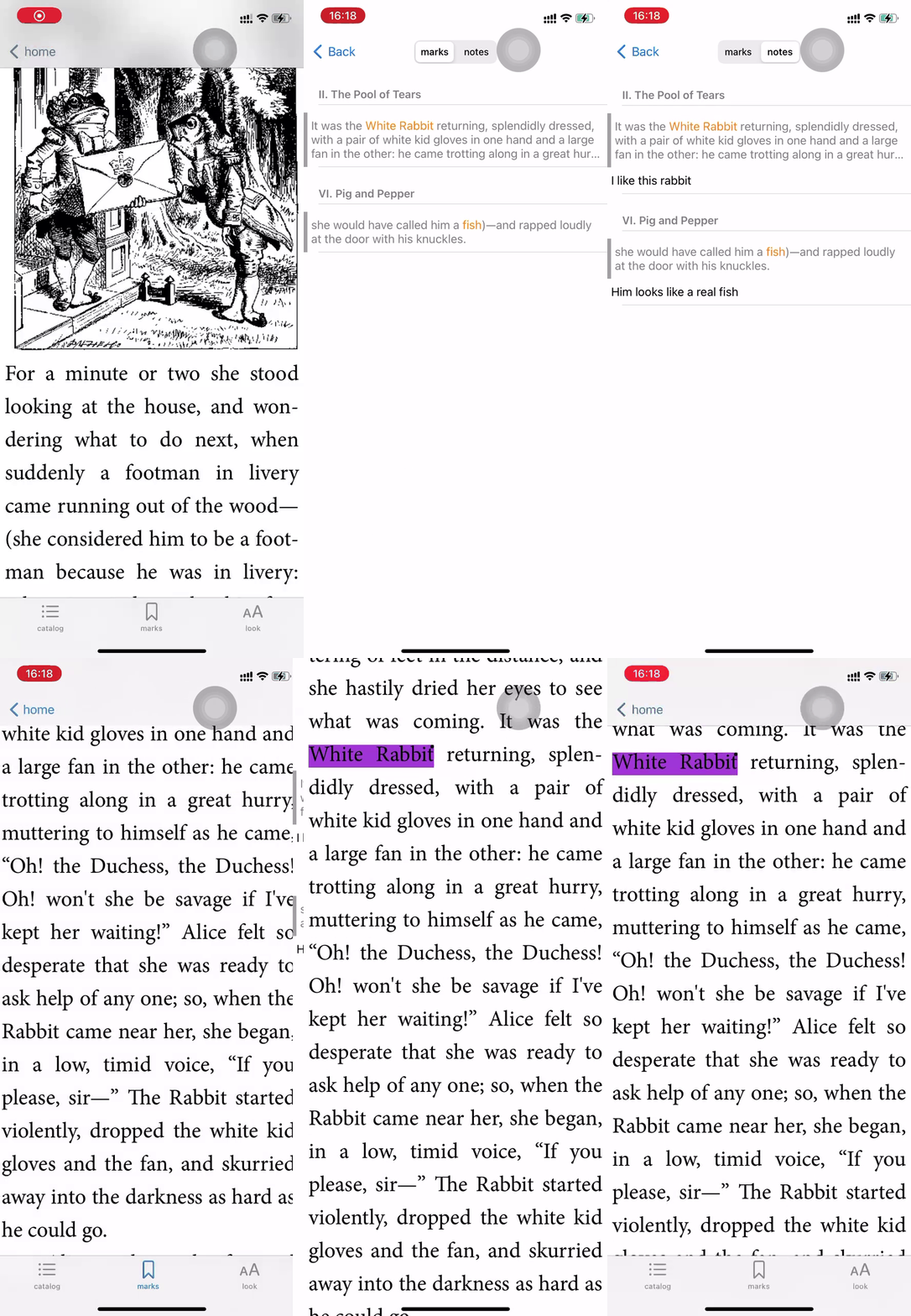
- Tap on the “marks” tab in the bottom bar
- swipe or click tab bar “notes” to switch to the notes
Adjusting Font Size
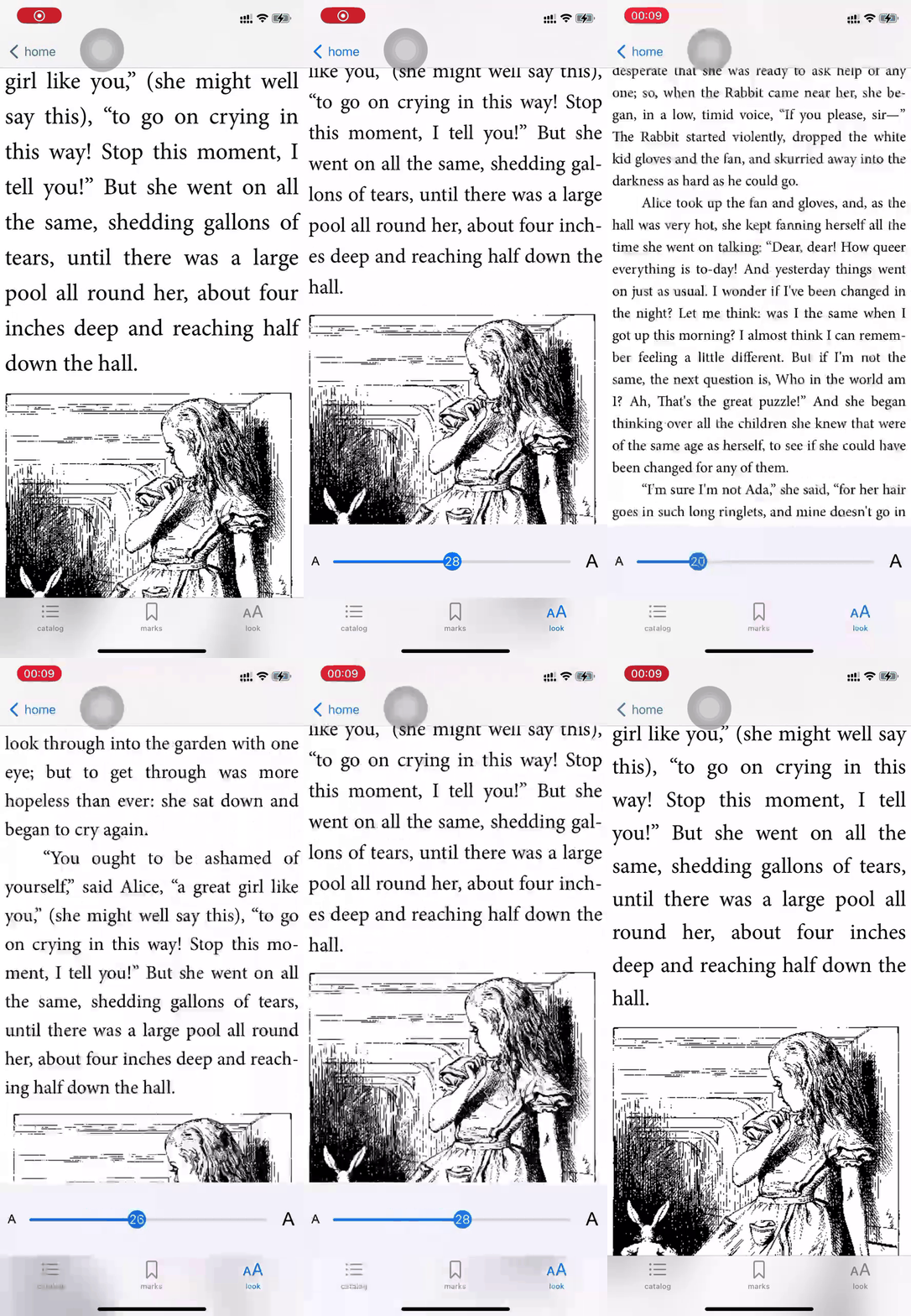
Books may have different preferences for font size. While reading, you can adjust the font size using the method below:
Need Help?
You have two approaches for getting help:
- Check the help documentation.
- Provide feedback via email.
Here’s how to get help via help document:
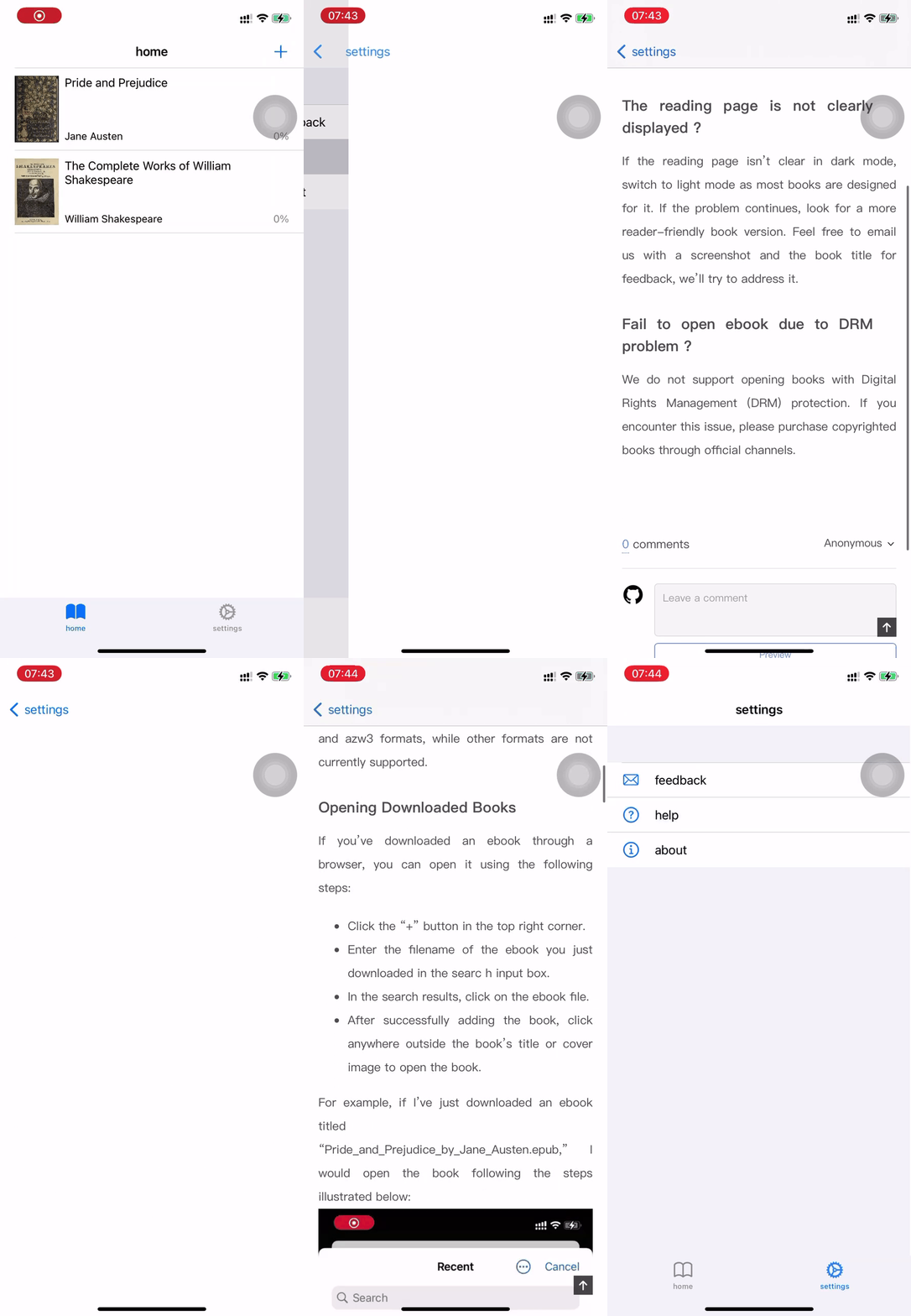
You can also get help via email , find the email entrance in the Settings tab. In your email, you can describe the issue you’re facing. We recommend including screenshots in your email, as they provide more information and save you typing time.
By default, we collect app logs and relevant information to diagnose issues. Rest assured, these logs do not contain your personal data. However, you have the option to delete logs or other information before sending your email.